
Using Get-CalendarDiagnosticObjects in Powershell

In the world of Microsoft Exchange Online, managing calendars efficiently is essential to ensure smooth scheduling and coordination among users. Calendar issues can disrupt workflows, leading to missed meetings, duplicated events, or unexpected cancellations.
For Exchange administrators, the ability to troubleshoot and diagnose these problems is invaluable. The Get-CalendarDiagnosticObjects cmdlet provides a way to collect detailed calendar logs that track important calendar-related event data for each mailbox. By using this cmdlet, administrators can gain insights into the actions taken on calendar items and resolve issues effectively.
Heads up: If you are working in an on-premises Exchange environment (Exchange Server 2010, 2013, 2016, or 2019) rather than Exchange Online, the older Get-CalendarDiagnosticLog cmdlet may be relevant to you. Note that Get-CalendarDiagnosticLog is not available in Exchange Online - Get-CalendarDiagnosticObjects is the current cmdlet for cloud-based environments.
What is the Get-CalendarDiagnosticObjects Cmdlet?
The Get-CalendarDiagnosticObjects cmdlet is a tool within Exchange Online PowerShell that allows administrators to collect a range of calendar logs. These logs provide detailed information about calendar-related events, such as meeting requests, updates, and cancellations, which can be crucial for diagnosing and resolving calendar issues in user mailboxes.
By leveraging this cmdlet, administrators can access logs that track all calendar items and meeting messages, providing a comprehensive view of calendar activities.
Syntax
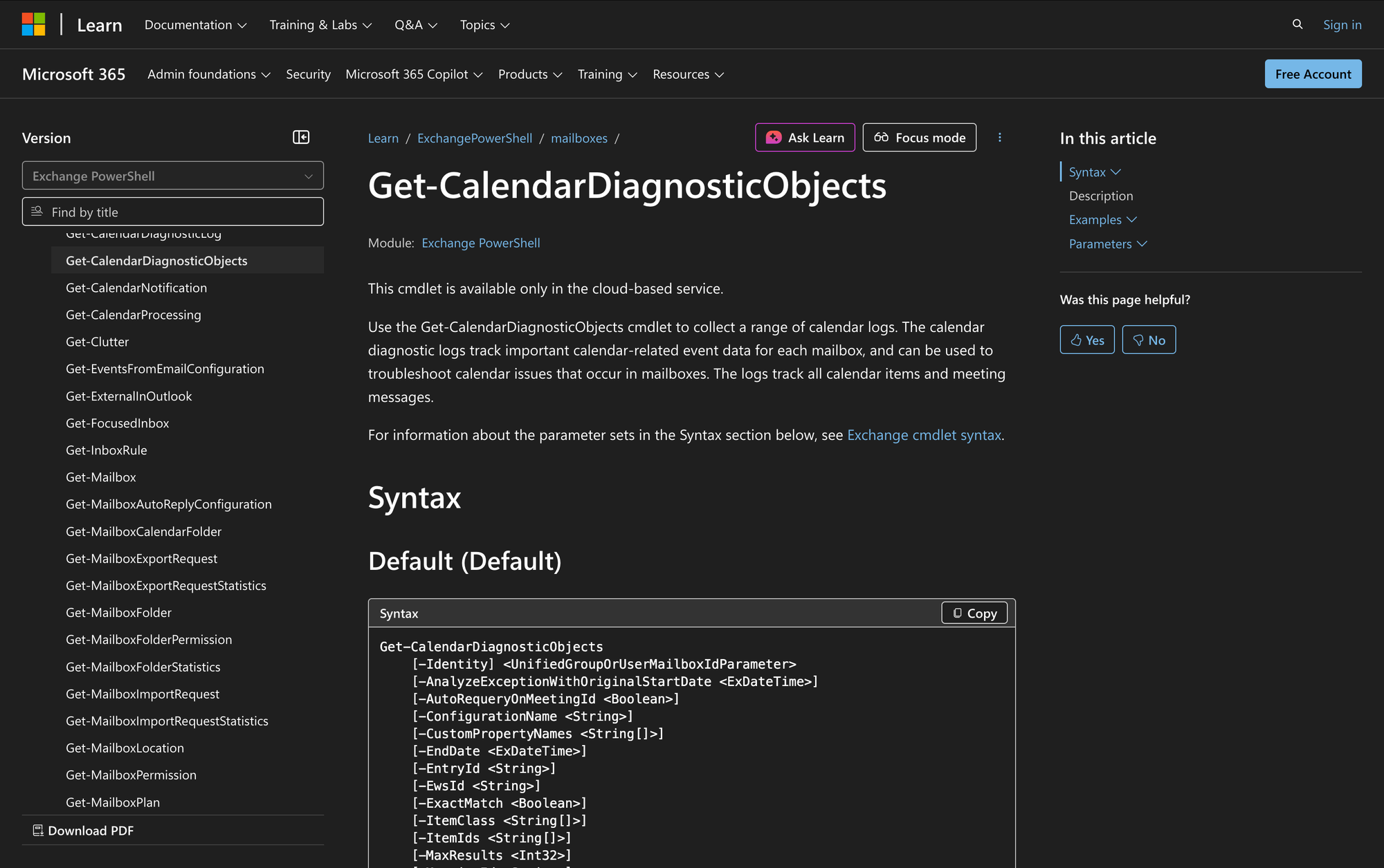
Here's syntax for Get-CalendarDiagnosticObjects as per original Microsoft source.
Get-CalendarDiagnosticObjects
[-Identity] <UnifiedGroupOrUserMailboxIdParameter>
[-AnalyzeExceptionWithOriginalStartDate <ExDateTime>]
[-AutoRequeryOnMeetingId <Boolean>]
[-ConfigurationName <String>]
[-CustomPropertyNames <String[]>]
[-EndDate <ExDateTime>]
[-EntryId <String>]
[-EwsId <String>]
[-ExactMatch <Boolean>]
[-ItemClass <String[]>]
[-ItemIds <String[]>]
[-MaxResults <Int32>]
[-MeetingId <String>]
[-ODataId <String>]
[-ResultSize <Unlimited>]
[-ShouldBindToItem <Boolean>]
[-ShouldDecodeEnums <Boolean>]
[-ShouldFetchAttendeeCollection <Boolean>]
[-ShouldFetchRecurrenceExceptions <Boolean>]
[-ShouldResolveParticipants <Boolean>]
[-StartDate <ExDateTime>]
[-Subject <String>]
[<CommonParameters>]
Parameters
- Identity: Specifies the mailbox or Microsoft 365 Group whose calendar you want to view.
- AnalyzeExceptionWithOriginalStartDate: Specifies the original start date for analyzing exceptions.
- AutoRequeryOnMeetingId: Automatically requery based on the Meeting ID.
- ConfigurationName: Specifies the configuration name.
- CustomPropertyNames: Returns the specified calendar item custom property in the results.
- EndDate: Specifies the end date of the date range for the calendar logs.
- EntryId: Filters the results by the specified EntryID property value.
- EwsId: Specifies the Exchange Web Services ID.
- ExactMatch: Specifies whether to use an exact match for text values specified in the Subject parameter.
- ItemClass: Filters the results by the specified MessageClass property value.
- ItemIds: Filters the results by item ID.
- MaxResults: Specifies the maximum number of results to return.
- MeetingId: Filters results by the globally unique identifier of the calendar item.
- ODataId: Specifies the OData ID.
- ResultSize: Determines the number of results returned by the cmdlet. The maximum value is 1000.
- ShouldBindToItem: Specifies whether to truncate large streamable property values.
- ShouldDecodeEnums: Decodes enumerations.
- ShouldFetchAttendeeCollection: Fetches the attendee collection.
- ShouldFetchRecurrenceExceptions: Includes exceptions to recurring meetings.
- ShouldResolveParticipants: Resolves participant information.
- StartDate: Specifies the start date of the date range for the OriginalLastModifiedTime property.
- Subject: Identifies the calendar items by the specified text in the Subject field.
Practical Uses
1. Troubleshooting Calendar Issues
When users experience issues with calendar events, such as missing invitations or unexpected cancellations, administrators can use the Get-CalendarDiagnosticObjects cmdlet to investigate. By retrieving calendar logs for a specific mailbox, admins can identify the actions taken on calendar items, such as updates or deletions, and pinpoint the cause of the issue.
2. Analyzing Meeting Requests
Administrators often need to analyze meeting requests to ensure they align with organizational policies. Using this cmdlet, they can extract logs related to meeting requests and updates, examining details such as the MeetingRequestType and ClientInfoString. This information helps ensure that meeting requests are processed correctly and meet compliance standards.
3. Monitoring Calendar Activities
In large organizations, monitoring calendar activities across multiple mailboxes is crucial for maintaining oversight. The Get-CalendarDiagnosticObjects cmdlet allows administrators to generate logs for specific date ranges, helping them track calendar activities over time. This monitoring can reveal patterns or irregularities in calendar usage, aiding in resource management and optimization.
Prerequisites
Before using the Get-CalendarDiagnosticObjects cmdlet, ensure the following requirements are met:
- You must have appropriate permissions in Exchange Online.
- The cmdlet is available only in the cloud-based service.
- Familiarity with Exchange Online PowerShell and its cmdlets.
How to Use Get-CalendarDiagnosticObjects: 7 Practical Uses
The Get-CalendarDiagnosticObjects cmdlet is a versatile tool for Exchange administrators to diagnose and troubleshoot calendar issues. Below are several practical examples demonstrating how to use this cmdlet effectively:
1. Retrieve Calendar Logs by Meeting Subject
Command:
Get-CalendarDiagnosticObjects -Identity "James" -Subject "Team Meeting" -ExactMatch $true
This command retrieves calendar logs from James's mailbox for items where the Subject is an exact match for "Team Meeting". It's useful when administrators need to investigate specific meetings and ensure their details are accurate and complete.
2. Analyze Meeting Updates
Command:
$LogData = Get-CalendarDiagnosticObjects -Identity "James" -Subject "Budget Review" -ExactMatch $true
$LogData | Sort-Object OriginalLastModifiedTime | Format-Table OriginalLastModifiedTime, CalendarLogTriggerAction, ItemClass
Here, we retrieve and sort logs related to "Budget Review" meetings. By sorting the logs by OriginalLastModifiedTime, admins can analyze the sequence of updates, helping them identify when and why changes occurred.
3. Export Calendar Diagnostics to CSV
Command:
Get-CalendarDiagnosticObjects -Identity "Simon" -Subject "Project Kickoff" -StartDate "01/01/2023" -EndDate "01/31/2023" | Export-Csv "C:CalendarLogsProjectKickoff.csv" -NoTypeInformation
This example demonstrates exporting calendar logs for "Project Kickoff" meetings in Simon's mailbox to a CSV file. Exporting logs is beneficial for detailed analysis and record-keeping outside of PowerShell.
4. Filter Logs by Meeting ID
Command:
Get-CalendarDiagnosticObjects -Identity "Simon" -MeetingId 040000008200E00074C5B7101A82E00800000000B0225ABF0710C80100000000000000001000000005B27C05AA7C4646B0835D5EB4E41C55
This command retrieves logs for a specific meeting using its MeetingId. It's particularly useful when investigating issues related to a single meeting or when you have the unique identifier from another diagnostic tool.
5. Retrieve Logs with Custom Properties
Command:
Get-CalendarDiagnosticObjects -Identity "James" -CustomPropertyNames "CustomProp1","CustomProp2"
By specifying CustomPropertyNames, administrators can retrieve logs that include specific custom properties. This is useful for organizations that utilize custom fields in calendar items for enhanced tracking and reporting.
6. Diagnose Recurring Meeting Exceptions
Command:
Get-CalendarDiagnosticObjects -Identity "Simon" -ShouldFetchRecurrenceExceptions $true -ItemIds "12345","67890"
This command is designed to diagnose issues in recurring meetings by including exceptions. It's effective when troubleshooting recurring meetings that exhibit irregular behavior. Note that the ItemIds parameter must be used with ShouldFetchRecurrenceExceptions.
7. Determine Response Types for Meetings
Command:
Get-CalendarDiagnosticObjects -Identity "James" -Subject "Quarterly Review" | Select-Object Subject, ResponseType
Here, administrators can determine the ResponseType for "Quarterly Review" meetings, helping them understand how attendees have responded. This insight is valuable for ensuring that meeting organizers are aware of attendee responses.
Final Note
The Get-CalendarDiagnosticObjects cmdlet is an indispensable tool for Exchange administrators seeking to maintain the integrity and reliability of calendar services within Exchange Online.
By leveraging this cmdlet, administrators can diagnose issues, monitor activities, and ensure that calendar-related events are logged and analyzed effectively. Whether you are managing a few mailboxes or an entire organization, understanding how to utilize this cmdlet will enhance your administrative capabilities and improve calendar management.