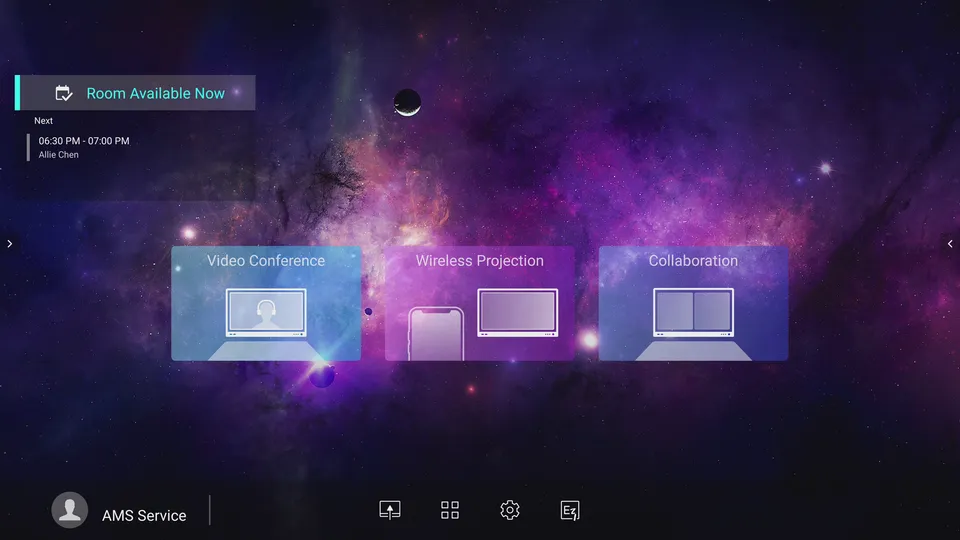
BenQ has created a Meeting Room 365 widget for the CP and CS series Corporate Interactive Flat Panel display (running Android). This allows you to display much of the information that would normally appear on a Meeting Room display inside the meeting room.
Learn More about the BenQ Corporate IFP
Use the instructions below to add the Meeting Room 365 Widget to your BenQ display.
Adding the Meeting Room 365 Widget
1. Log in using your AMS credentials.
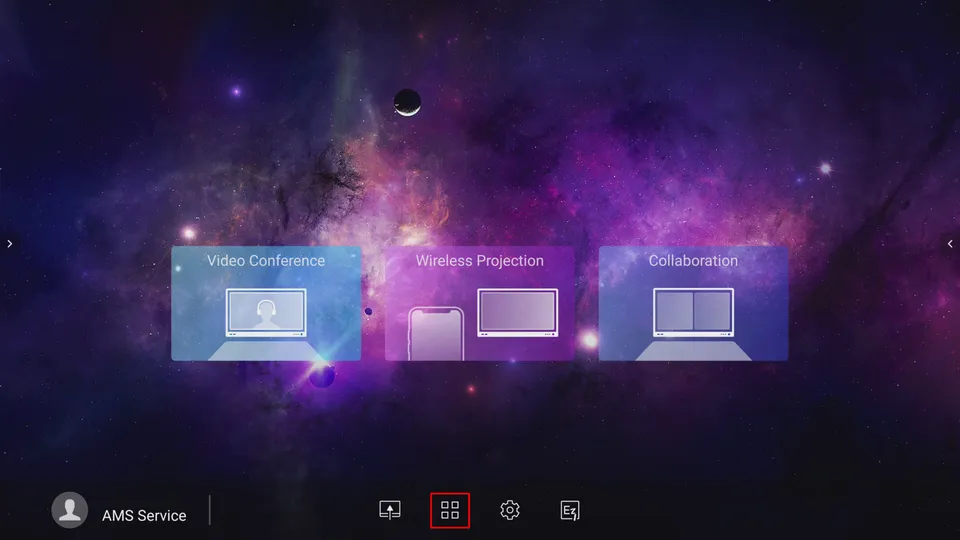
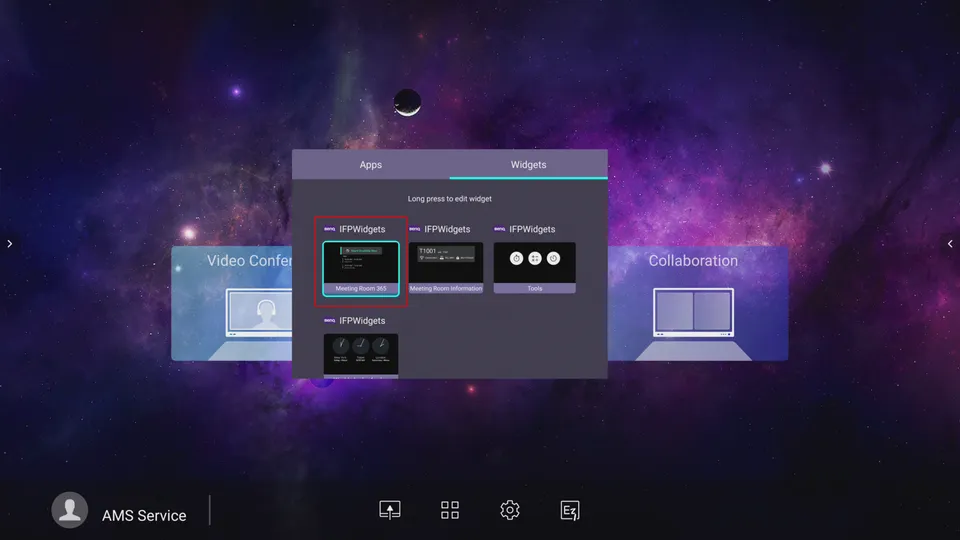
3. Display the widget on the home screen
For the CP series:
Tap and drag the Meeting Room 365 widget to the home screen.
For the CS series:
a. Select the Meeting Room 365 widget. b. Press and hold the OK button on the remote. c. Ensure that the widget is checked.
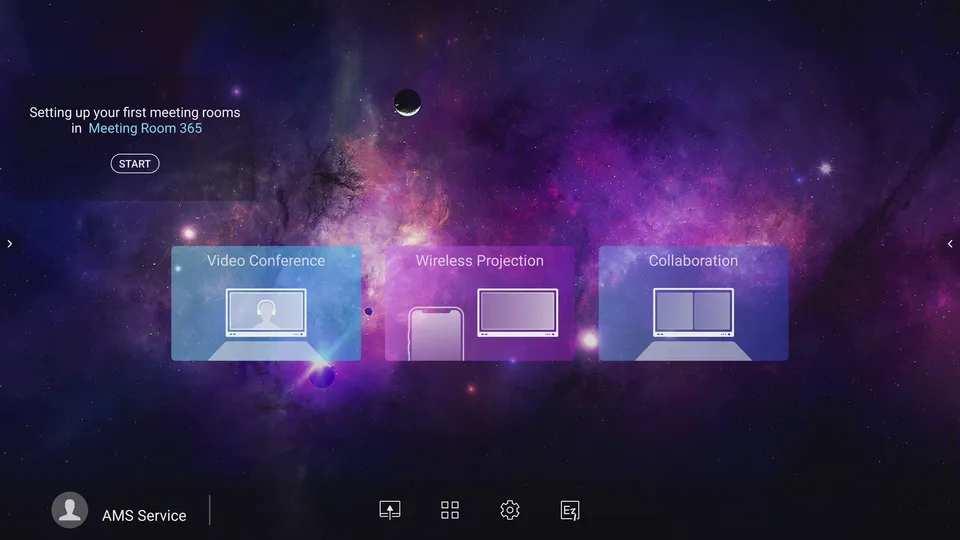
You will now see an empty widget on your display:
Provisioning the Display
4. Open the display key dialog box.
For the CP series:
On the home screen, tap START from the Meeting Room 365 widget.
For the CS series:
On the Widgets window, select the Meeting Room 365 widget.
A dialog box will appear:
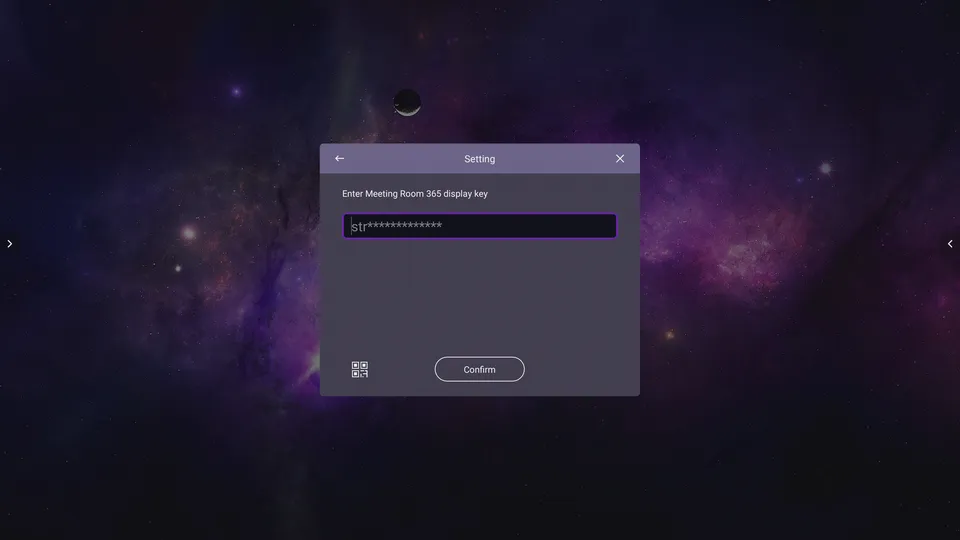
5. Enter your Meeting Room 365 display key
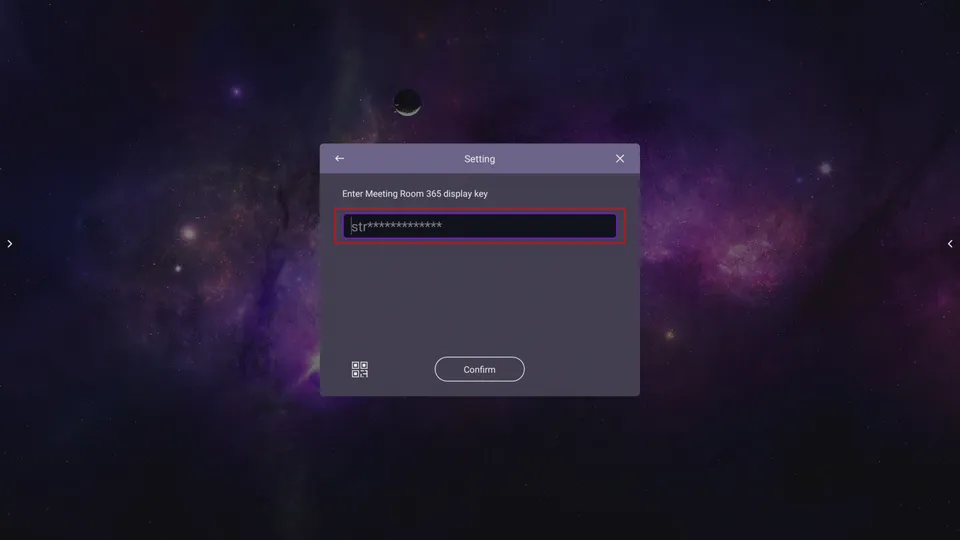
The meeting room schedule will now appear on the widget: