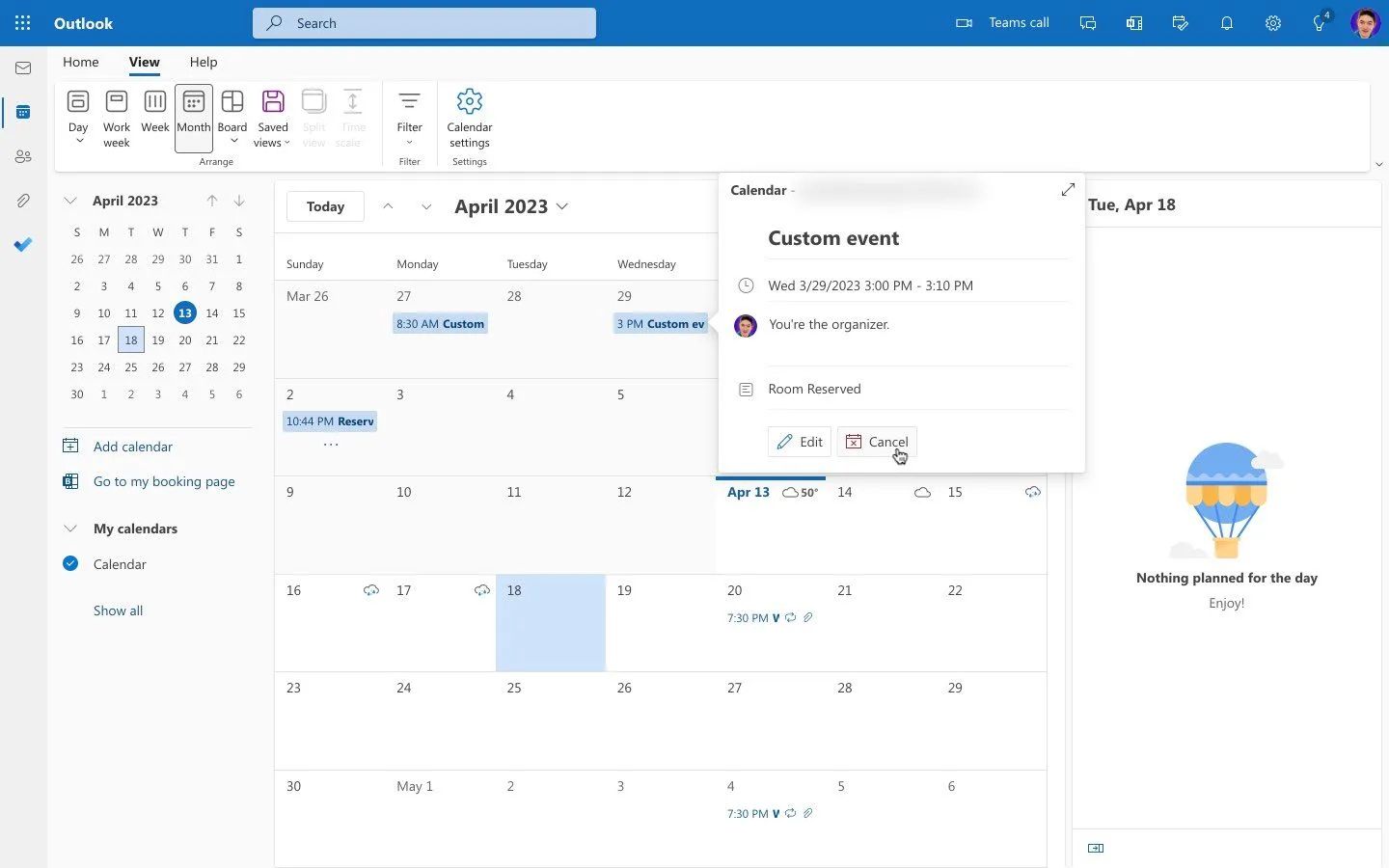
Quick answer: To book a meeting room in Outlook, create a new meeting and set the date and time. Select the Location field and choose Browse with Room Finder (or Browse with Places). Pick a building, filter by capacity or features, select a room that's free, and choose Send. The room is invited like an attendee, and its calendar accepts or declines the request. You need a Microsoft 365 or Exchange work account.
How do I book a meeting room in Outlook?
Per Microsoft Support:
- In Calendar, choose New Event (or New Meeting in classic Outlook).
- Add a title, attendees, date and time. Set the time first: Room Finder only lists rooms free at that time.
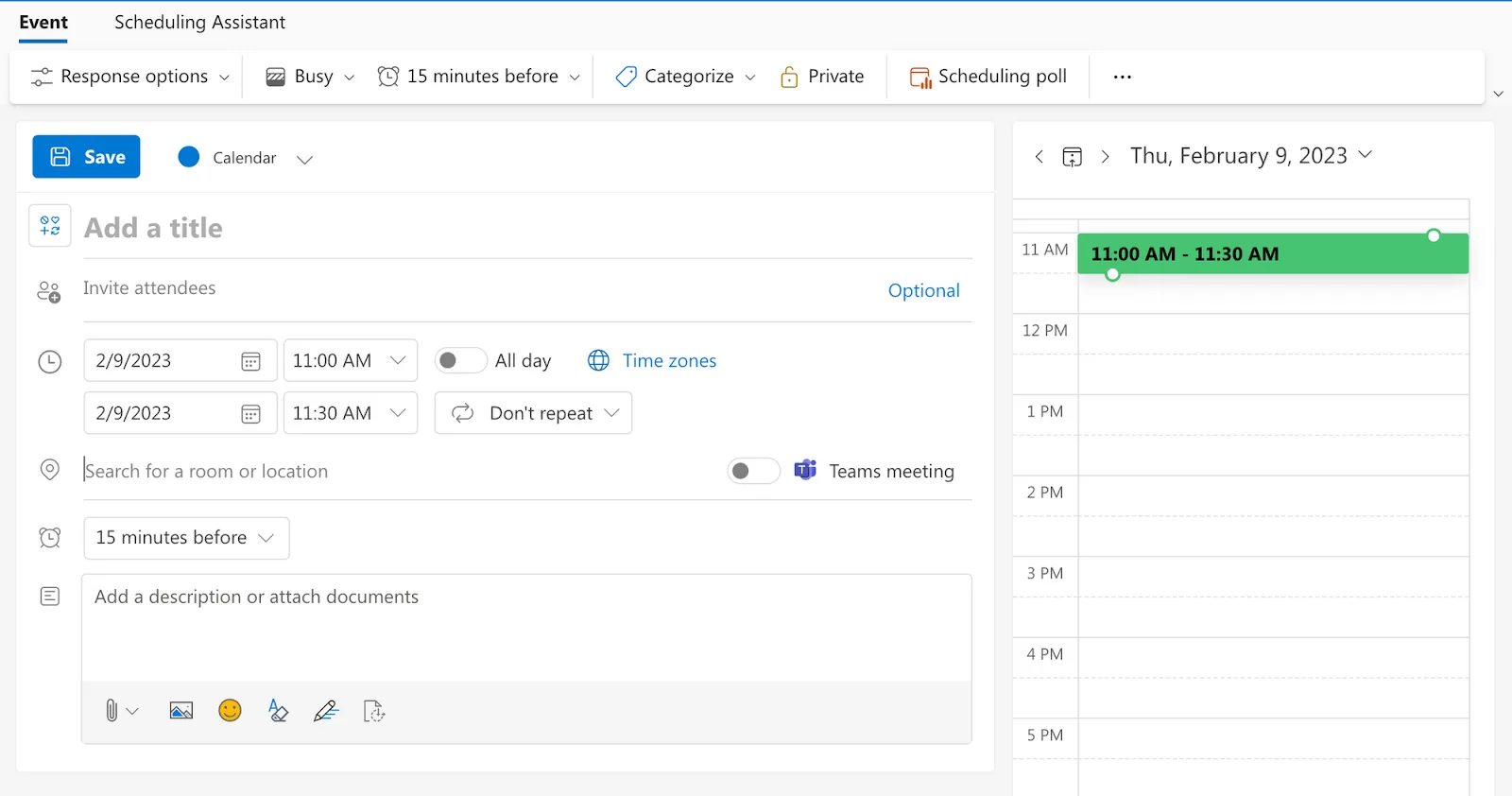
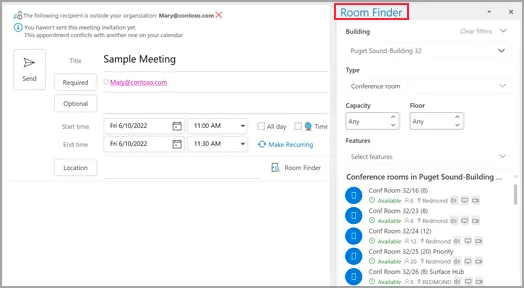
- Select the Location field and choose Browse with Room Finder at the bottom of the suggestions. Classic Outlook also has a Room Finder button at the end of the field.
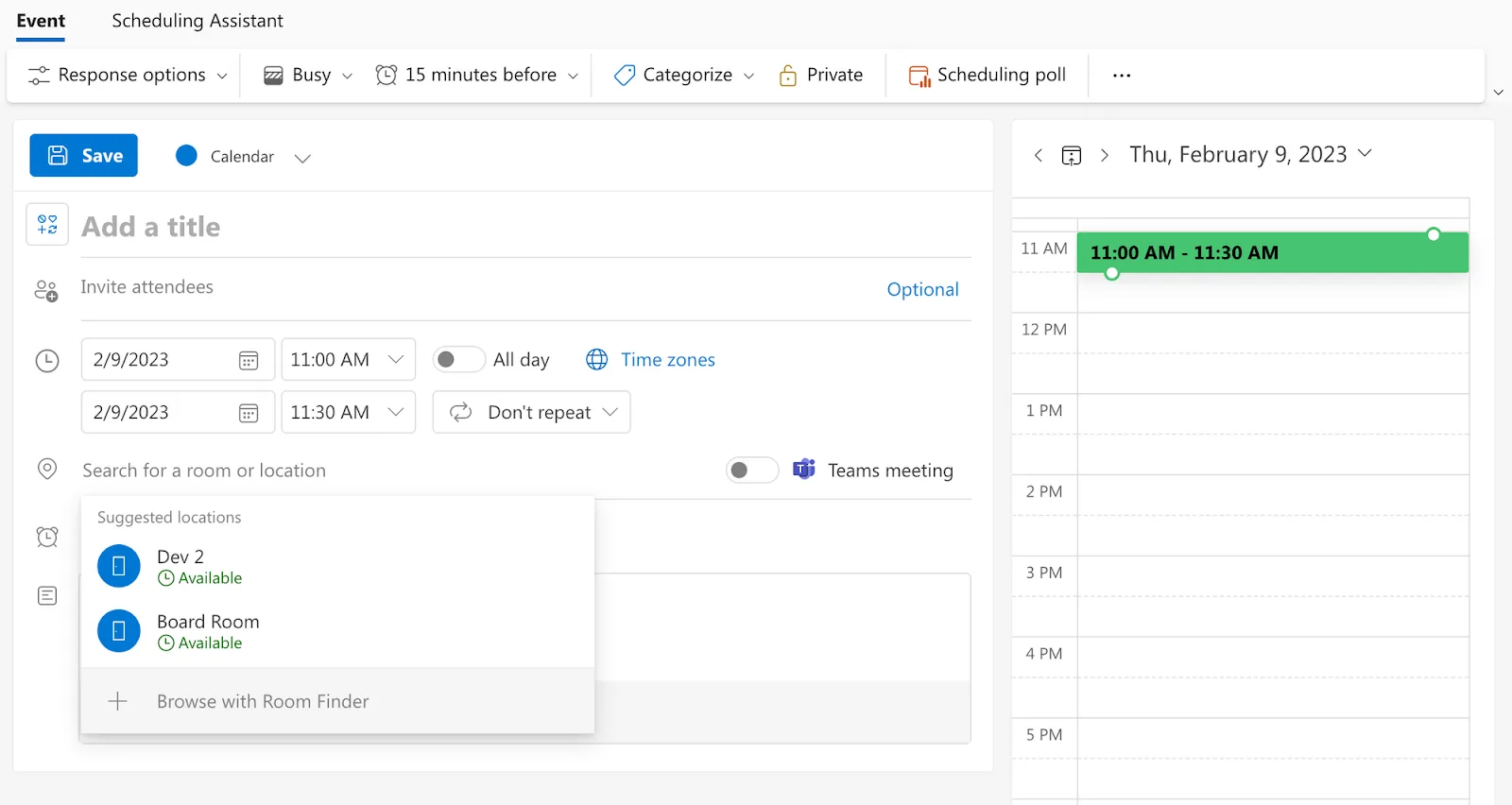
- Choose a building, then filter by Type, Capacity, Floor or Features.
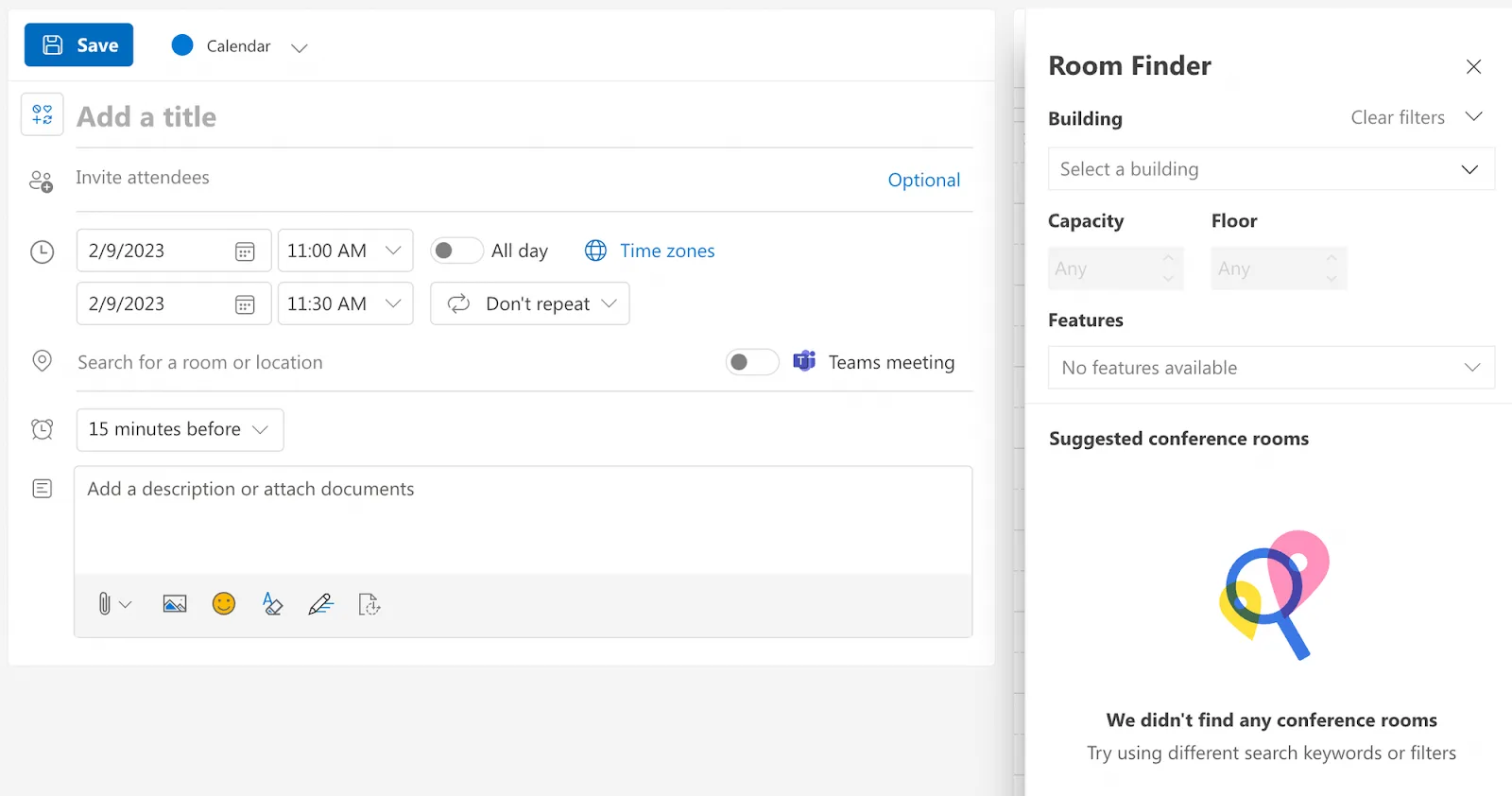
- Select an available room. Outlook adds it to the meeting.
- Choose Send.
Is the room booked once I send?
Usually. A room is a mailbox with its own calendar, and your admin decides how it answers. Per Microsoft Learn, rooms by default:
- Accept or decline automatically, based on whether the room is free.
- Decline bookings more than 180 days ahead or longer than 24 hours.
An admin can instead name delegates who approve each request by hand. Then the booking is pending until a delegate accepts it. Check your inbox for the room's reply either way.
How do I find a time when the room and everyone are free?
Use the Scheduling Assistant. Choose Scheduling Assistant on the ribbon, then AutoPick, and Outlook jumps to the next time that works for both the people and the rooms. To check one room before booking, see how to check meeting room availability in Outlook.
Can I book more than one room?
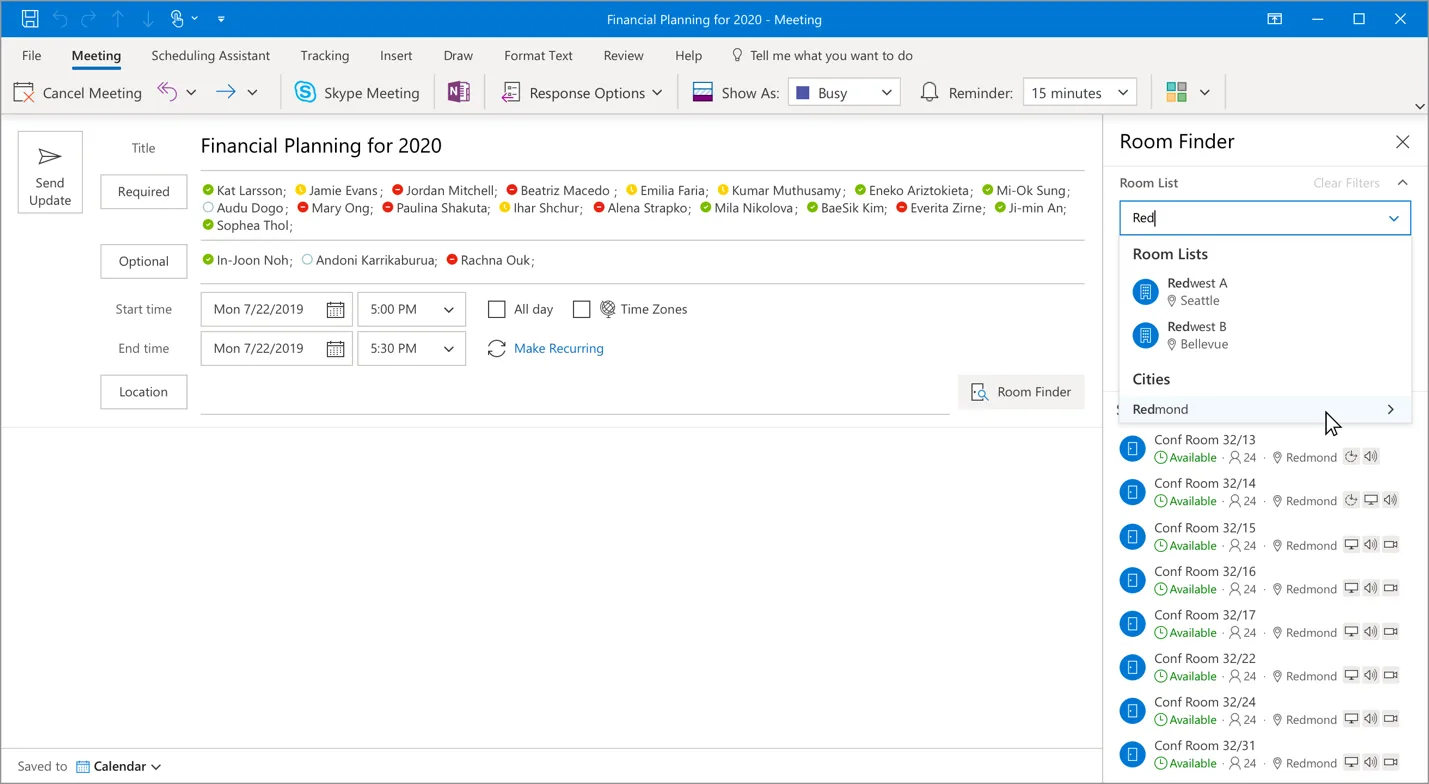
Yes. Each room is a recipient, so add as many as you need from Room Finder. Room Finder browses by city and room list, so you can pick a room in each office for a meeting across sites. Each room accepts or declines on its own.
Why does Outlook show Places finder instead?
Places finder is Microsoft's newer room picker. Per Microsoft Learn, Places finder is on by default for tenants set up on or after August 1, 2026, and Microsoft is "evaluating deprecation" of Room Finder. Places finder lists the same rooms by building and floor. Pick those, then the room.
Why can't I find any rooms?
Room Finder only lists rooms your admin has added to a room list. If it's empty, see Outlook Room Finder not showing rooms.
Can people book a room at the door?
Outlook helps people at their desks. Someone standing outside the room can't tell if it's free. A meeting room display on the door shows the room's Outlook calendar and books it on the spot, writing to the same room mailbox. Meeting Room 365 runs on an iPad or Android tablet for $9 a month.