---
title: How to Remove Teams Meeting from Outlook Invite
slug: remove-teams-meeting-from-outlook-invite
published: 2023-03-27T16:21:15.000Z
updated: 2023-04-17T19:15:16.000Z
feature_image: /blog/images/remove-teams-meeting-from-outlook-invite/phone-home-screen-with-teams-icon.1600.webp
feature_image_alt: Phone home screen showing the Microsoft Teams icon among other messaging apps
feature_image_caption: "Photo by Dimitri Karastelev / Unsplash"
author: James Futhey
author_slug: james
meta_description: "Is Outlook automatically sending Teams invites without your permission? Learn how to remove Teams Meeting from Outlook Invite here."
status: published
---
Outlook is one of the most efficient and straightforward platforms for **scheduling online meetings.**
Nevertheless, it might add online meetings on [Microsoft Teams](https://www.microsoft.com/en-us/microsoft-teams/group-chat-software) to Outlook meeting requests **by default**, which is something that some of us don’t find helpful.
This guide will show you all the details you need to learn **how to remove Teams Meeting from Outlook invites** quickly by following quick steps.
## Why is Outlook Automatically Adding Teams Meeting?
By default, Microsoft Outlook adds a Microsoft Teams meeting invite from each Outlook Calendar invite sent.
This [Outlook-Teams Integration](https://support.microsoft.com/en-us/office/schedule-a-teams-meeting-from-outlook-883cc15c-580f-441a-92ea-0992c00a9b0f) is **useful if you want to host Outlook Calendar invites in Microsoft Teams**, but if this is not your goal, then you should change the settings to prevent this from happening.
Fortunately, you can access the Settings options and disable Teams Meeting invites when creating a new meeting.
> 💡 Note: Once a meeting is created with a Teams meeting, you cannot remove it in Outlook, Outlook Web Access, or Teams. You must either cancel the invite and re-create it, or add a note to the invite instructing your attendees to ignore the Join Teams Meeting link.
## 3 Reasons to Disable Microsoft Teams Meetings Invites
As mentioned above, some users will find the integration between the Outlook App and the Microsoft Teams app pretty useful, but _this will not always be the case._
Therefore, these are three reasons why you might want to disable automatic Microsoft Teams Meeting Link invites from Outlook:
1. **Your team is not meeting online:** if you don’t want to host online meetings, then it makes no sense for Outlook to generate new Teams Meetings links. Offline events hosted in person do not require you to send Teams invites to anyone.
2. **You are using another online meeting platform:** Microsoft Teams is not the online platform to host online meetings - you might want to host a Zoom meeting instead, for example.
3. **You want to get rid of Microsoft Teams notifications:** getting Teams invites for every Outlook event you schedule is surely annoying - remove Teams meetings from Outlook, and the notifications will certainly go away.
## How to Remove Teams Meeting from Outlook Invite
There are three different ways to **remove Teams Meeting from all your Outlook invites.**
The process consists of disabling Teams invites from every Outlook meeting invite you send. It is possible to do this from the Outlook website, desktop client, or Microsoft Office 365 website. Read further to check all the details you need to know about this process.
### 1\. Remove Teams Meeting from Outlook Desktop Client
If you are using the **Outlook desktop app** to send invites, these are the steps you need to follow:
1. Open the Outlook Client and **click “File”** at the top left corner of the screen.
2. Go to **Options**, and select **Calendar Tab.**
3. A new window will open - here, look for **“Calendar Options.”**
4. You will see a button next to a drop-down menu that says **“Add Online Meeting to All Events”** \- click on it.
5. Simply **click on the box next to the “Add Online Meeting to All Meetings” button to unmark it.** Since the box is now deselected, Teams will not send more invites when you create Outlook events. Click “Ok” to save the changes.
> 💡 In some versions of Outlook, this may be under Outlook ⮕ Settings ⮕ Calendar
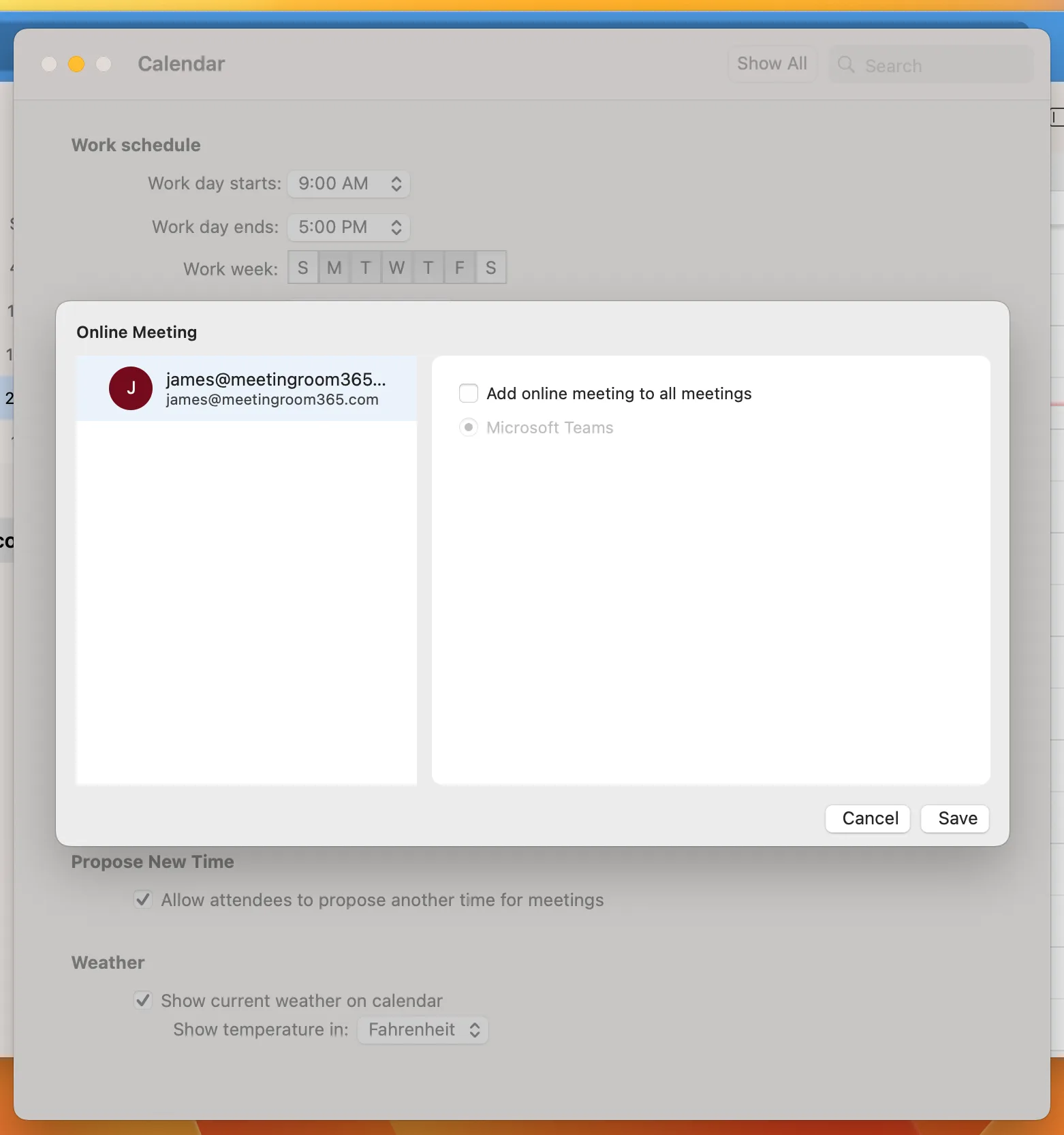
_Uncheck the box to stop adding Teams meetings to every event_
### 2\. Remove Teams Meeting Link from Outlook Website
If you use **Outlook’s website** to send meeting invites, then this is how you remove a Teams Meeting Link:
1. Log into your [Microsoft Outlook](https://outlook.office.com/) account on a web browser.
2. Search for the **Calendar icon** and click on it.
3. Select **“New Event”** and then click on **“More Options.”**
4. Look for the **“Teams Meeting” information button and toggle it off.**
5. Set up the meeting parameters, and send the Outlook invite. If the Teams Meeting button was toggled off prior to this, then no Teams Meetings Link will be generated.
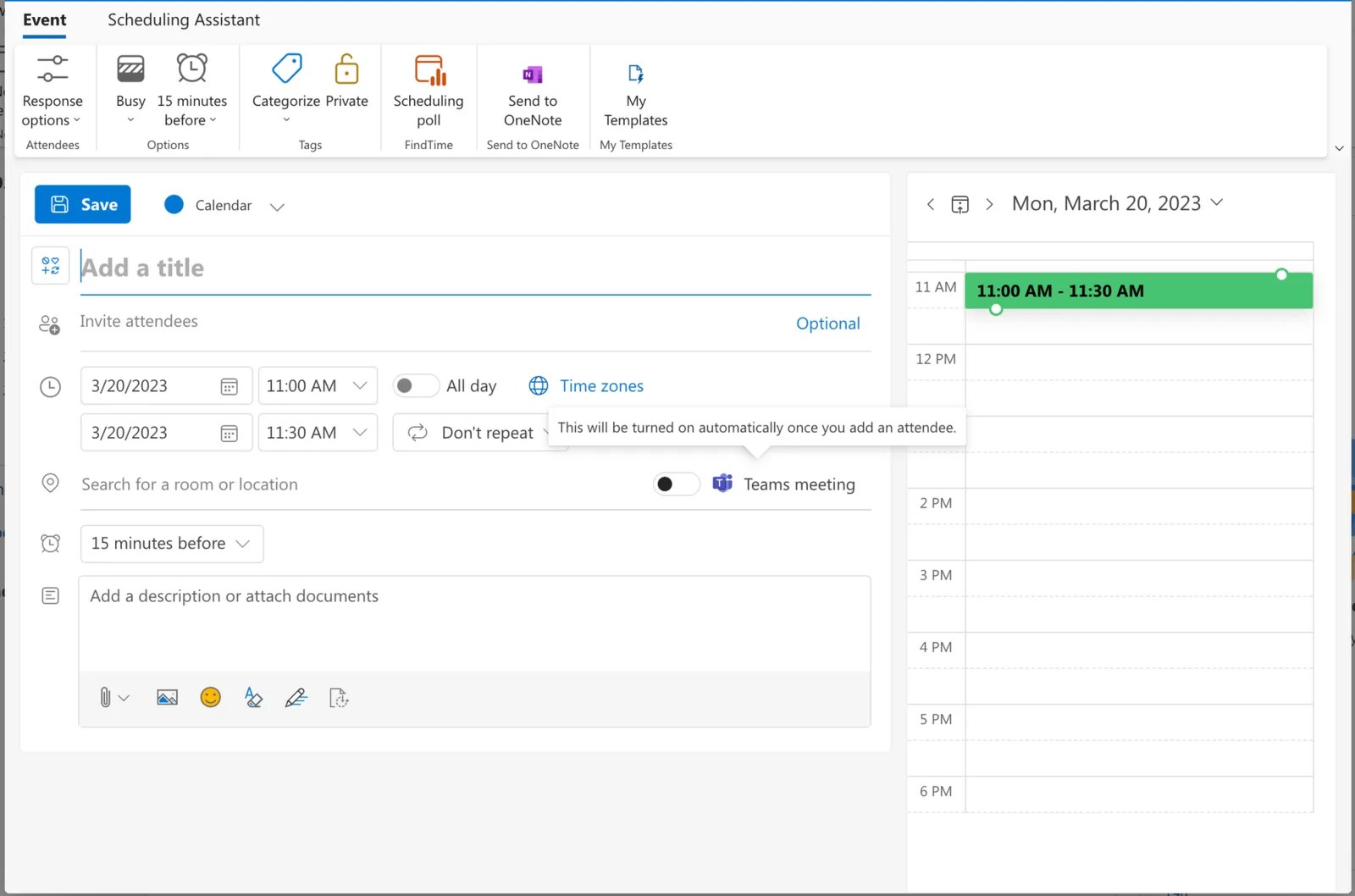
_You can toggle a Teams meeting on or off by adjusting the toggle labelled "Teams meeting"_
### If you wish to make this change permanent:
1. Click the **Settings Icon** in the top right corner of Outlook Web Access
2. Click **View all Outlook Settings** in the bottom of the pane that opens
3. Click **Calendar**
4. Click **Events and Invitations**
5. Deselect the option **“Add Online Meeting to All Meetings”**
6. Click **Save** to save your changes. This will make the change permanently to all new meetings you create
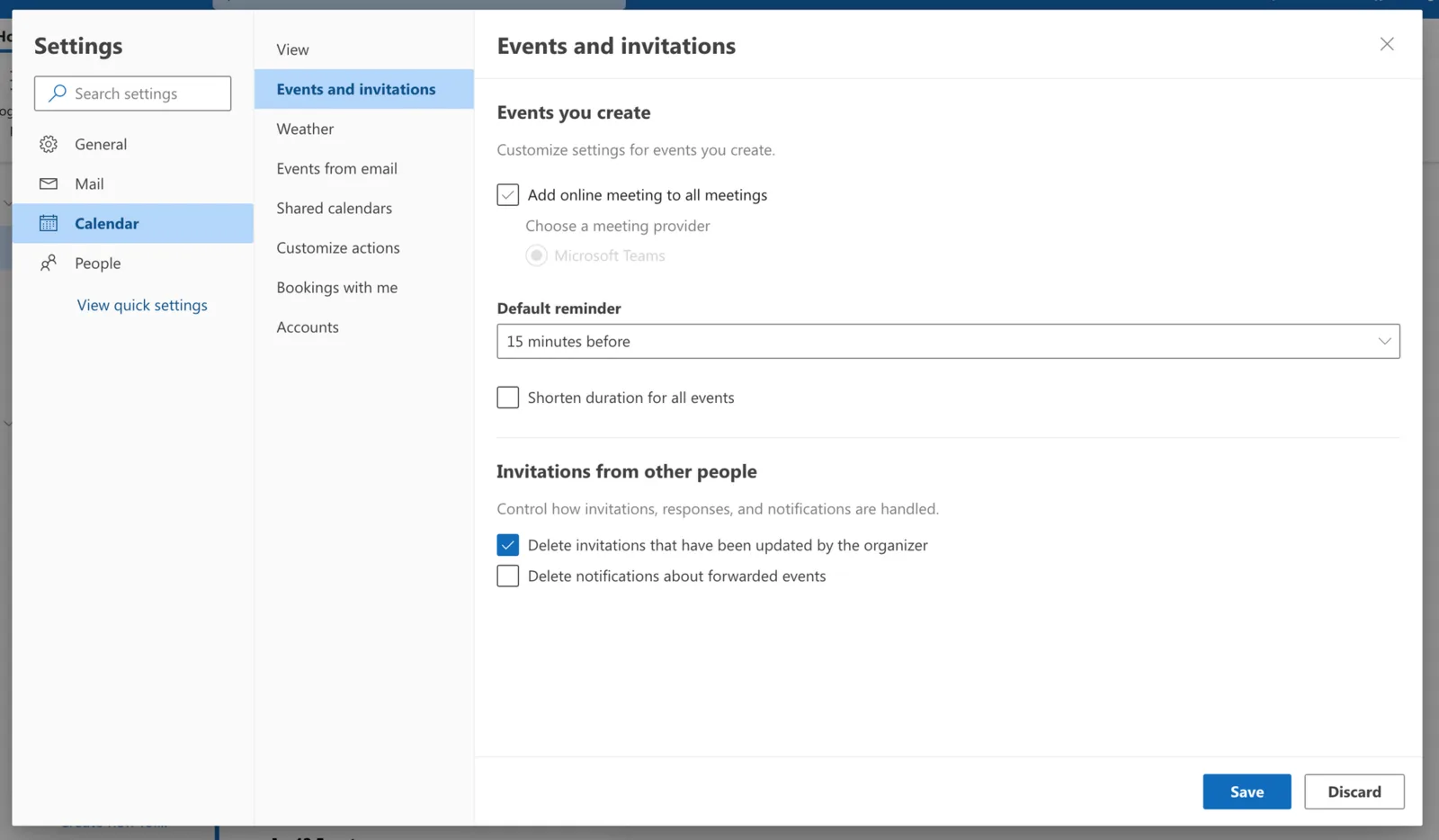
_You can permanently prevent Teams links from being added automatically by unchecking "Add online meeting to all meetings"_
### 3\. Remove Teams Meetings from Microsoft Office for the Web
Lastly, you can also remove Teams Meetings from the official **Microsoft Office website** like this:
1. Go to the [Microsoft 365](https://www.microsoft.com/en/microsoft-365/free-office-online-for-the-web) website and log into the platform using your credentials.
2. **Select Outlook** from the left-hand side icons group, and then go to **Settings**.
3. Click on **“View All Outlook Settings.”**
4. Go to the **“Events and Invitations”** tab.
5. Finally, **look for the “Add Online Meeting to All Meetings” button and unclick it** \- the box should be unmarked. Save the changes, and you should be all set.
## Wrapping Up: How Does Removing Teams Meetings from Outlook Invites Work?
Although Microsoft Teams is a great solution for businesses that want to stay connected, _Teams invites are not always necessary_ when setting up a new meeting on Outlook.
Let’s go through **a quick summary** of the steps to follow to prevent and remove Teams meetings from Outlook Meeting invites:
1. Log in to your Outlook or Microsoft 365 account via your preferred platform (desktop or website).
2. Look for Outlook settings, and locate the settings related to Events and Invitations.
3. **Unmark the default “Teams Meetings” settings** \- this lets Outlook know that you don’t wish to generate Teams invite links when setting up a simple Outlook calendar invite.
From now on, Outlook and Teams invites will not be generated simultaneously.