---
title: How to Propose a New Time in Google Calendar
slug: propose-new-time-google-calendar
published: 2023-06-23T14:39:02.000Z
updated: 2026-04-11T02:45:12.000Z
feature_image: /blog/images/propose-new-time-google-calendar/person-at-imac-with-colour-coded-calendar.1600.webp
feature_image_alt: Person at an iMac showing a week view packed with colour coded calendar events
feature_image_caption: "Photo by Gaining Visuals / Unsplash"
author: James Futhey
author_slug: james
meta_description: "Did they send a meeting time that doesn’t work for you? learn how to propose a new time in Google Calendar on the web and mobile versions of this platform here."
status: published
---
Google Calendar is one of the greatest online tools to schedule meetings with your coworkers. However, **finding an event time that suits everyone** is often a challenge that many businesses and organizations face every day.
If you have received a Google Calendar invite, but the time selected does not work for you, then you might **suggest a different time to the organizer.**
Let’s learn **how to propose a new time in Google Calendar** by following this quick step-by-step guide.
## How to Propose a New Time in Google Calendar Online
The first way to propose a new time in Google Calendar is by going it from the main **Google Calendar Web Platform.**
When someone [schedules an event](https://support.google.com/a/users/answer/9491973?hl=en) on Google Calendar, attendees are able to set up a suggested time from the proposal section of the platform. Let’s discover how Google Calendar “Propose New Time” feature works.
### Step 1: Open Google Calendar and Click the Event Details
Access your Google account, and go to the online version of Google Calendar.
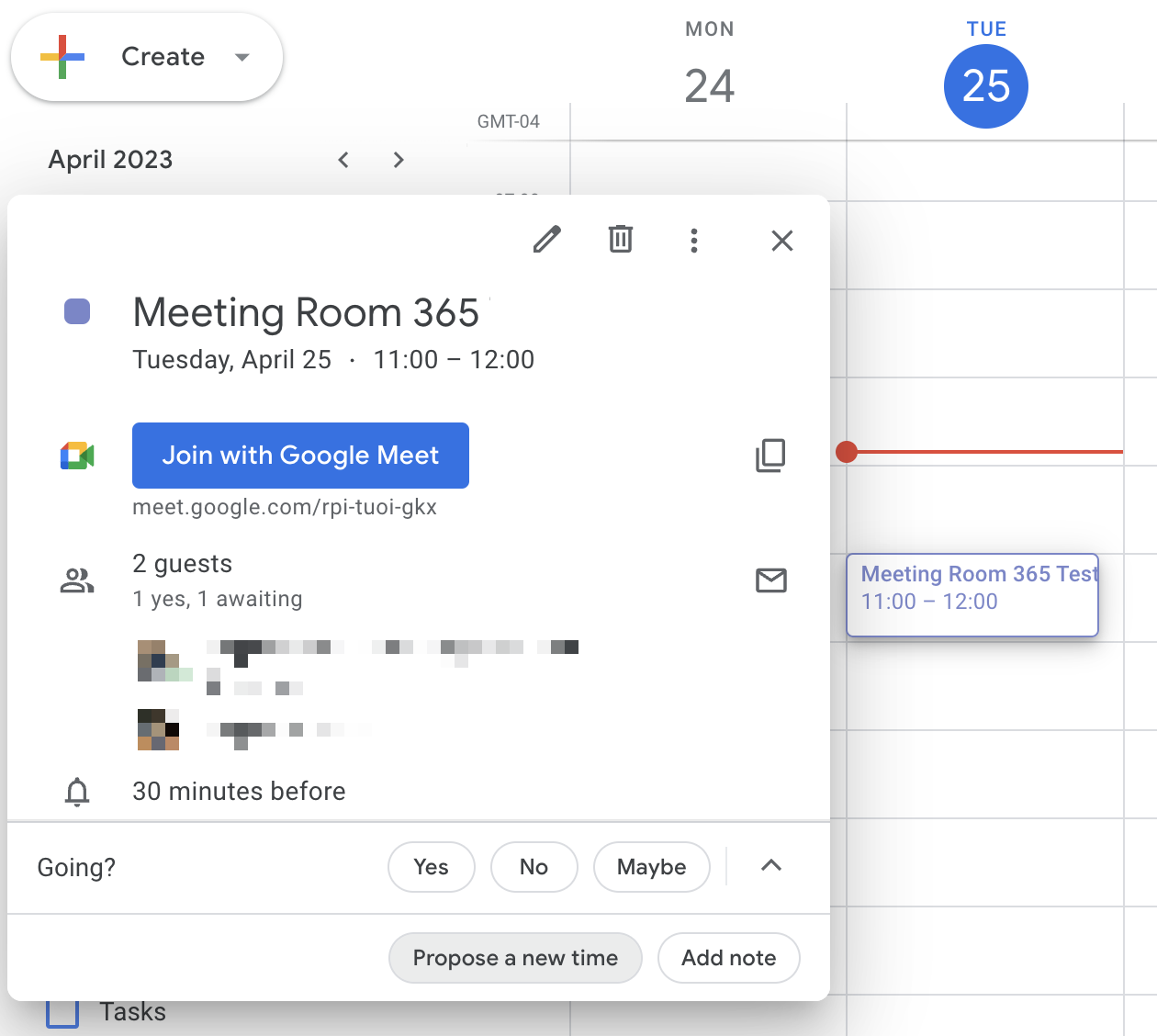
Surf through the different events, and **click on the event name that you want to propose a new date.**
By clicking on the event, you will see the Event Details page on a new screen.

### Step 2: Select “Propose a New Time”
Under the section that says “Going,” you will see a small arrow icon. Click on it, and select the option that says **“Propose a New Time.”**
### Step 3: Set the New Proposed Time for the Calendar Event
A new page will open - here, you can set your desired time for the upcoming event.
Under the **“Current Event”** option and RSVP, tell the event organizer whether you can assist at that time (Yes), cannot (No), or not sure (Maybe).

Then, edit the new proposed time under **“Your Proposal.”** You can select an alternative date (**day and month**) or just set a new proposed time for the meeting.
This option also lets you suggest a **different meeting duration** (30 minutes, 45 minutes, 1 hour, etc.).
You can write a message by going to the **“Add Optional Message”** screen.
After writing a short message, review the details of the meeting and **click “Send Proposal.”**

### Step 4: Wait for the Event Organizer to Review Proposed Time
After you click “Send Proposal,” the **meeting organizer will receive an email notification** regarding your new proposed time.

They can click **“Accept” to automatically change the details** of the meeting, or select “View on Google Calendar” to thoroughly check the details of the event.
If they click on “View On Google Calendar,” the organizer will be **redirected to the Event Details Screen**, where they can set a new time Google Calendar or suggest alternative times in case the proposal doesn’t work for most attendees.
If you are proposing a new time for a 1 on 1 meeting, event organizers will change the time _based on their availability._
Otherwise, they will need to look at event responses from other attendees in order to **set an event time that works for everyone.**
## How to Propose a New Time in Google via Gmail
If you receive **Google Calendar invites directly in your Gmail inbox**, you can propose a new Google Calendar meeting time directly via email as well. Follow these three steps to propose a new time in Google Calendar directly from your email.
###
Step 1: Log Into Your Gmail Account and Open the Event Invitation Email
Log into the Gmail account associated with Google Calendar. Then, **look for the Google Calendar invitation email**, and open it on your device.
### Step 2: Select “More Options” and Click “Propose a New Time”
After opening the email, you will see the details of the Google Calendar event directly from your email.
You can either select “Yes,” “Maybe,” “No,” or “More Options” - **click on “More Options” and then select “Propose a New Time.”**

### Step 3: Propose a New Meeting Time
A new window will open - you will be redirected to the window where you propose a new time on Google Calendar.
**Set the new proposed time**, write a short message to explain why you would like to set a different time, and click the **“Send Proposal”** icon to finish the process.
Once again, the event organizer will receive the proposal in their email, and they need to evaluate it.
If the suggested change works for all the attendees, the owner of the meeting might [change the Google Calendar organizer](https://meetingroom365.com/blog/change-organizer-google-calendar/) to another person or reschedule the meeting for another day.
## How to Propose a New Time in Google Calendar App
If you use the **Google Calendar App for mobile devices (iOS or Android)**, then it is worth noting that proposing a new meeting time is easy from it too.
### Step 1: Open the Google Calendar App (Android and iOS devices)
Open the Google Calendar App on your mobile device (iOS or Android device) while logged into your account.
If you don’t have the Google Calendar App, you can download it from the **Apple App Store** (iPhone/iOS) or the **Google Play Store** (Android).
### Step 2: Select the Desired Event and Tap “Propose a New Time”
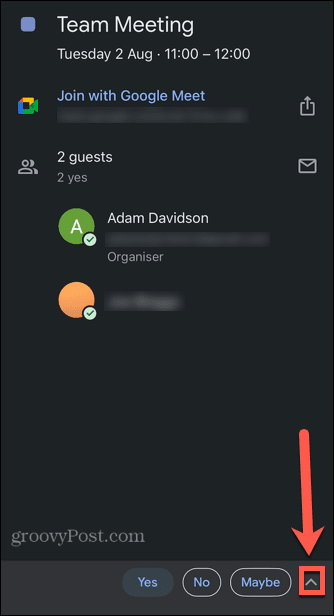
Look for the desired event and tap on it. By tapping on the event, the details will appear on a new screen.
On the bottom bar, tap the arrow icon, and **select “Propose a New Time.”**
### Step 3: Propose a New Meeting Time and Send the Proposal
Set the **details of the new proposal** (time, date, and a short message to explain your decision).
After proposing a new time in Google Calendar App, **tap the “Send” icon,** and the event organizer will receive the notification on their Gmail inbox.
Organizers must ensure that the new proposed time works for every meeting attendee.
Upon denying or accepting the new proposed change, the organizer will [forward Google Calendar invitations](https://meetingroom365.com/blog/forward-google-calendar-invite/) to other meeting attendees.
## Summary: Proposing a New Time Google Calendar
By proposing a new meeting time on Google Calendar, both **meeting organizers and attendees can coordinate their duties** so meetings and events don’t interfere with each other. This is a quick summary of the topics discussed in this guide:
1. You can propose a new time in Google Calendar via web by tapping on the Event Name and selecting **“Propose a New Time.”**
2. Proposing a new meeting time can also be done from the **Google Calendar Mobile App** or your **Gmail inbox.**
3. Event organizers have to **accept or deny the new time proposal** for the changes to reflect on the event.