---
title: "Outlook Room Finder Not Showing Rooms? Here’s the Fix"
slug: outlook-room-finder-not-showing-rooms
published: 2023-03-29T17:32:06.000Z
updated: 2026-04-11T02:35:49.000Z
feature_image: /blog/images/outlook-room-finder-not-showing-rooms/outlook-room-finder-listing-rooms.1600.webp
feature_image_alt: Outlook Room Finder pane listing the conference rooms in a building with their availability
author: James Futhey
author_slug: james
meta_description: "Are rooms not showing on the Room Finder? Let’s learn how to fix Outlook Room Finder not showing rooms in 4 steps here."
status: published
---
The easiest way to book a room in Microsoft Outlook is by **using the Room Finder**, an integrated feature that shows all the available rooms, calendars, and meeting room filters to the user.
Another great option is to use the Scheduling Assistant, which sets up a new meeting within just a few seconds.
But what if the user tries to create a meeting, and the **Outlook Room Finder is not showing rooms?** Let’s learn the root cause behind this problem so we can fix it promptly.
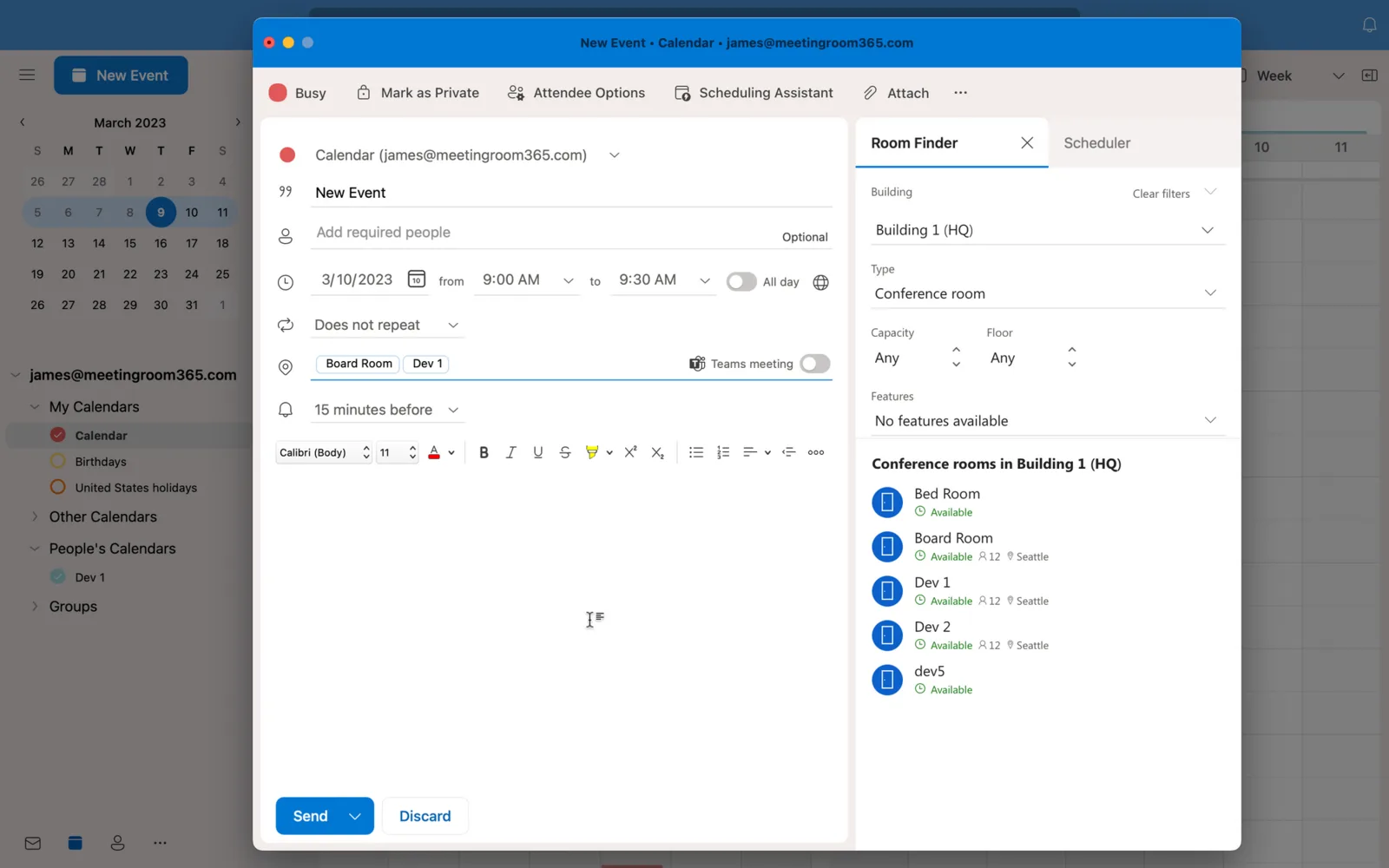
_You can use the Room Finder in Outlook to find a meeting room._
## 3 Common Reasons Why Outlook Room Finder is Not Showing Rooms
When a user creates a meeting through the Room Finder Pane, **the complete list of rooms should show below the “Choose an Available Room” box** in the Options group of the Meeting tab.
Nonetheless, if no room is shown on this list, then this happens due to any of the **three following reasons.**
### 1\. Conference Rooms Are Unavailable
When you are [checking meeting room availability](https://www.meetingroom365.com/blog/check-meeting-room-availability-outlook/) on Outlook, there are two possible outcomes after clicking on the Room List option:
1. Available rooms that fit your requirements appear in **green** color.
2. Unavailable rooms, or rooms that do not fit your meeting requirements, will simply **not appear on the list.**
This means that it might happen that the room simply does not show on Outlook Room Finder because it is not available.
Nevertheless, if you are **sure that the room is available and it is still not showing**, then it might be due to the following reasons.
### 2\. Existing Rooms Are Hidden from the Global Address List (GAL)
Conference rooms might be **accidentally hidden from the Global Address List** ([GAL](https://learn.microsoft.com/en-us/exchange/address-books/address-lists/create-global-address-list)) of Exchange or Office.
Note that the GAL is **a searchable directory used to find and locate mail-enabled objects, such as the room mailbox.** Therefore, it is important to prevent the room from being hidden in the GAL so it can appear on the room list.
### 3\. The Room List Hasn’t Been Created
Rooms must belong to a room list set up by the Microsoft Exchange or Microsoft Office 365 administrator.
If a **room hasn’t been properly added to a list**, it will not show on the Outlook Client.
> 👉 New! We've added an Interactive PowerShell Room List Builder you can download to set up Room Finder quickly & easily.
## How to Fix Outlook Room Finder Not Showing Rooms in 4 Steps
If the Room Finder is not showing rooms on the Room List option (even if the rooms are supposed to be available), then **fixing this problem is up to the administrator.**
Most likely, the admin needs to create a room list and add existing rooms to that list via [Exchange Online PowerShell](https://learn.microsoft.com/en-us/exchange/troubleshoot/calendars/conference-rooms-not-displayed).
If conference rooms are not showing on Microsoft Exchange, the desktop Outlook client, or Microsoft Office 365, then this is what you must do.
### Step 1: Connect to Exchange Online PowerShell
Exchange Online PowerShell is an **administrative interface** used to control and manage different aspects of an organization, including the list of rooms.
As an administrator, you must [connect to EOP](https://learn.microsoft.com/en-us/powershell/exchange/connect-to-exchange-online-powershell) in order to be able to create a room list. Go to the aforementioned Microsoft website to learn more.
> 💡 Looking for information on how to connect to Exchange? See our Previous Article.
### Step 2: Run the Following Command to Create a Room List
Once you connect to Exchange Online PowerShell, you must run the following command in order to **create a Room List:
Command:**
```powershell
New-DistributionGroup -RoomList -Members $Members
```
Remember to provide a name to the Room List for the New Distribution Group Command to work.
### Step 3: Add Existing Rooms to the New Rooms List
Now that the Room List has been created, it’s time to **add existing rooms to the list.** To do this, use the following command:
**Command:**
```powershell
Add-DistributionGroupMember -Member
```
Make sure to use the correct Name and Room Mailbox info.
> 💡 Note: it may take up to 24 hours for your room list to sync with Outlook
### Step 4: Verify That the Room is Visible in the GAL
You have now created a new Room List and added existing rooms to the list, but now is time to **make sure that the rooms are visible in the GAL**.
To do this, run this command:
**Command:**
```powershell
Get-Mailbox
```
In this case, you need to make sure that **the “HiddenFromAddressListsEnabled” parameter is set to $false.** This means that the room will be discoverable on the Room Finder whenever a user creates a new meeting.
## Wrapping Up: Fixing Not Rooms Shown on Microsoft Outlook Room Finder
Let’s make a **quick recap** - if conference or meeting rooms are not showing on Outlook’s Room Finder, then you have three options:
1. **Ensure that the room is available** and suits all your meeting requirements.
2. As an admin, ensure that the room is **not hidden from the Global Address List.**
3. Use Exchange Online PowerShell to **create the room list and add it to Outlook.**
This will promptly fix all issues related to rooms not showing on Microsoft Outlook.