---
title: How to Add Call in Number to Teams Meeting
slug: add-call-in-number-to-teams-meeting
published: 2023-08-18T22:06:52.000Z
updated: 2026-04-11T02:27:45.000Z
feature_image: /blog/images/add-call-in-number-to-teams-meeting/office-desk-phone.1600.webp
feature_image_alt: Desk telephone on an office desk with the workspace blurred behind
feature_image_caption: "Photo by Julian Hochgesang / Unsplash"
author: James Futhey
author_slug: james
meta_description: Audio conferencing in Microsoft Teams is easy - learn how to add call-in number to Teams meeting here.
status: published
---
One of the greatest features of Microsoft Teams is the fact that meeting hosts can add call-in numbers to a meeting.
This allows participants to **join the meeting via their phone number,** which works perfectly if they don’t have a stable Internet connection at the moment.
The process of setting up a dial-in number is **up to IT admins**, but in this guide, we’ll show you **how to add call-in number to Teams meeting** effortlessly.
## How Does Adding Call-in Number to Teams Meeting Work?
Audio conferencing phone numbers, or call in-numbers, work for Team meeting participants to join a meeting using their mobile device instead of the Teams app. Before setting up a dial-in number in Microsoft Teams meetings, there are a few things to know:
1. Dial-in numbers are dedicated phone numbers added by the **IT admin using the correct licenses by previously purchasing (or assigning) them.**
2. Assigning call-in numbers in **audio conferencing bridge** can be done by using shared phone number or dedicated phone number options. Learn more about conference bridges on [Microsoft’s website](https://learn.microsoft.com/en-us/microsoftteams/phone-numbers-for-audio-conferencing-in-teams).
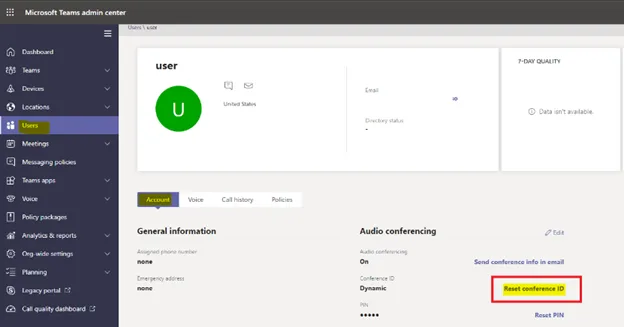
3. Admins can access the **Microsoft Teams Admin Center** to edit user’s audio conferencing settings and set up the default number for a meeting. Then again, this depends on the role of the admin within the [Teams organization](https://learn.microsoft.com/en-us/microsoftteams/set-the-phone-numbers-included-on-invites-in-teams).
## How to Add Call in Number to Teams Meeting in Outlook
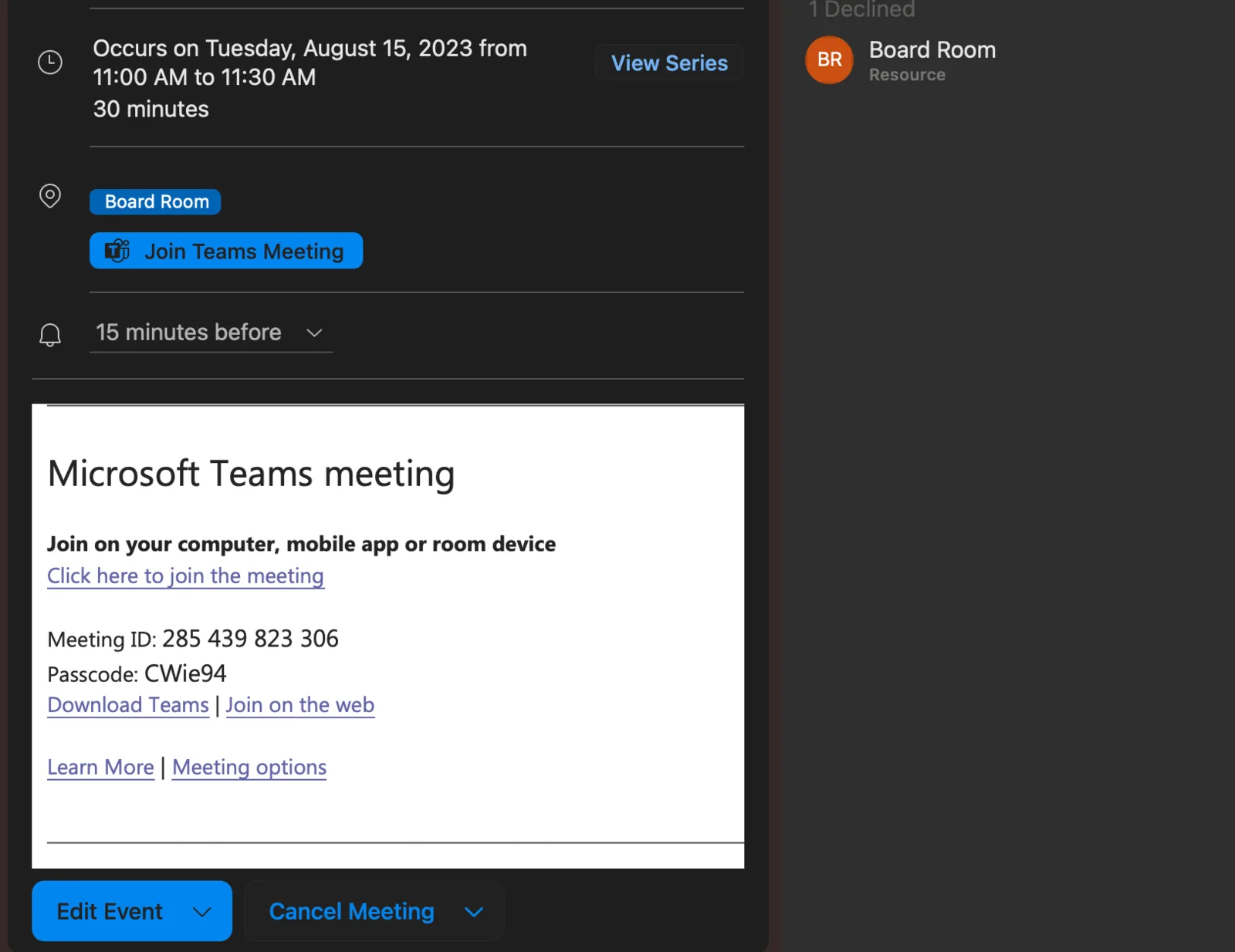
According to [Microsoft](https://support.microsoft.com/en-gb/office/add-a-dial-in-number-for-a-meeting-in-teams-7c33e972-e5a2-4b32-aabd-09c0c5f18424), **you don’t need to add a dial-in number to meeting invites sent via the Outlook Web App or Desktop client**. This means that, in order to add dial-in and conference ID numbers to a Teams meeting via Outlook, simply do the following:
1. Launch **Microsoft Outlook** and open Calendar.
2. Click **“New Teams Meeting”** and add all the Meeting details.
3. Send the meeting invite to at least one person, and **all available users will receive the dial-in number directly on the invitation** \- there’s no need to do anything else.
If the dial-in number is not appearing, then **the IT admin must update the licenses via the Microsoft Teams Admin Center.**
## How to Add Call-in Number to Teams Meeting in Microsoft Teams
To add call-in number to a Teams meeting in [Microsoft Teams](https://support.microsoft.com/en-gb/office/schedule-a-meeting-in-teams-943507a9-8583-4c58-b5d2-8ec8265e04e5), the steps to follow are similar, but there are a couple of things to have in mind.
### Step 1: Make Sure PSTN Conferencing is Turned On for Your Account
Only users who have **PSTN conferencing enabled** on their account can include dial-in numbers for Teams meeting.
**The IT admin is the only one who can turn on this setting for audio meetings in Teams.**
Send a message to the main IT admin so they can enable this feature in case it’s disabled.
### Step 2: Send the Microsoft Teams Invite
Launch Microsoft Teams, select Calendar, and **create a new Microsoft Teams meeting.**
Set up the meeting details as you would normally do, and send the meeting invite.
### Step 3: The Dial-in Number Will Appear in the Meeting Join Link
After sending the invite, **the dial-in number will appear in the Join link to the meeting.**
This allows participants to have a direct number for a meeting in case they want to join via phone number and not via the Teams application.
## Summary: Adding Dial-in Phone Numbers to Microsoft Teams Meeting
To summarize, **IT organization admins are the only ones that can set up dial-in phone numbers** based on the [toll-free numbers policy](https://learn.microsoft.com/en-us/microsoftteams/audio-conferencing-toll-free-numbers-policy) of Microsoft.
If IT admins have properly set up these phone numbers, they will **automatically appear on Teams meetings after sending the invite to at least one person.**
If you have further doubts, contact your organization’s admin to ensure they have the correct licenses to add a dial-in number to Microsoft Teams meetings.